
StrongFolder for Chrome

StrongFolder — File Share is a free Chrome extension that sends files and whole folders directly from your browser to the recipient's browser. Click the icon on any page, drop files or choose a folder, and share the link. Files are not uploaded or stored, StrongFolder sets no size limit, and the recipient needs no extension.

  1. Add the extensionOpen StrongFolder in the Chrome Web Store and click Add to Chrome.
  2. Pin itClick the puzzle-piece icon next to the address bar, then the pin next to StrongFolder.
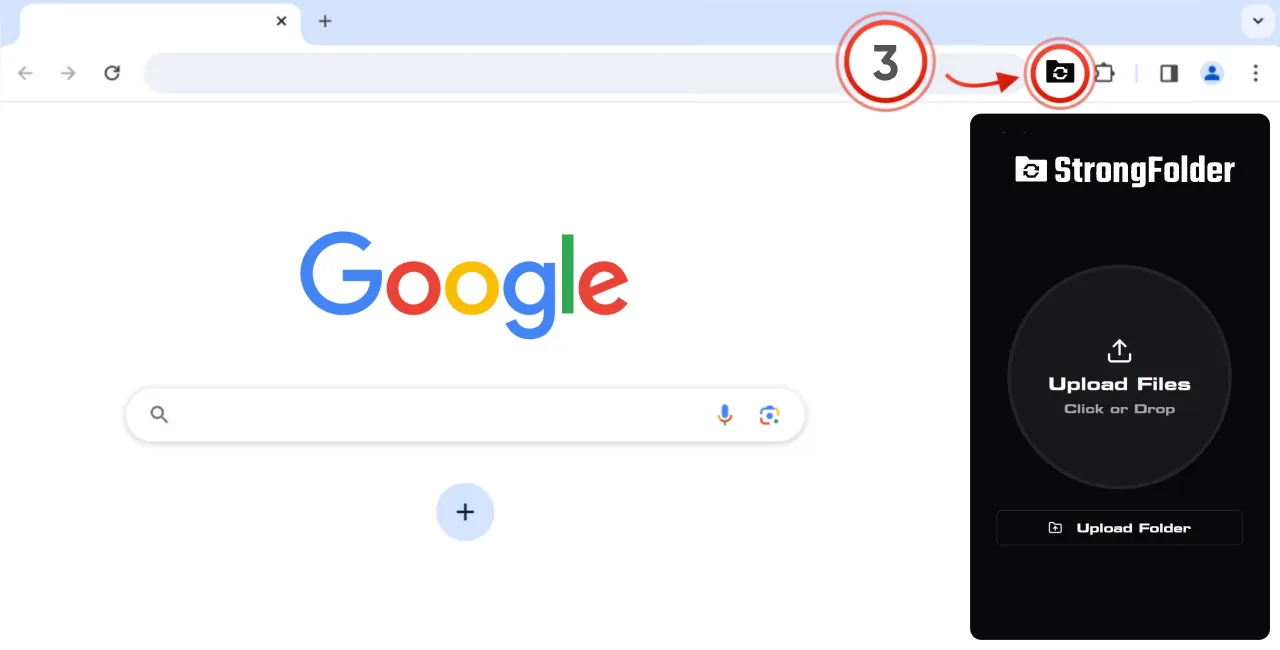
  3. ShareClick the StrongFolder icon on any page, drop files or choose a folder, and copy the link.
  4. Keep Chrome openThe recipient downloads from your browser; keep Chrome open until they finish.

What does the StrongFolder extension do?

It puts the StrongFolder sender one click away. Instead of opening a website, you click the folder icon next to the address bar, drop files or pick a folder, and get a link and a QR code. The transfer itself is the same peer-to-peer connection as in the web app: browser to browser, encrypted, with no upload and no storage.

Add to Chrome — free

One-click sharing from your browser toolbar

Why use the extension instead of the website?

Chrome extensionWeb app
WhereChrome toolbar, on any pagestrongfolder.com tab
InstallOne click from the Chrome Web StoreNone
BrowsersChrome and most Chromium browsersAny modern browser
FeaturesSame transfer, link and QR codeSame
Best forSharing often, sharing while you workOne-off sends, other browsers

How do I install and pin it?

The welcome page that opens after installation shows the same steps with pictures: click the puzzle piece (1), pin StrongFolder (2), then click the folder icon (3) whenever you want to send something.
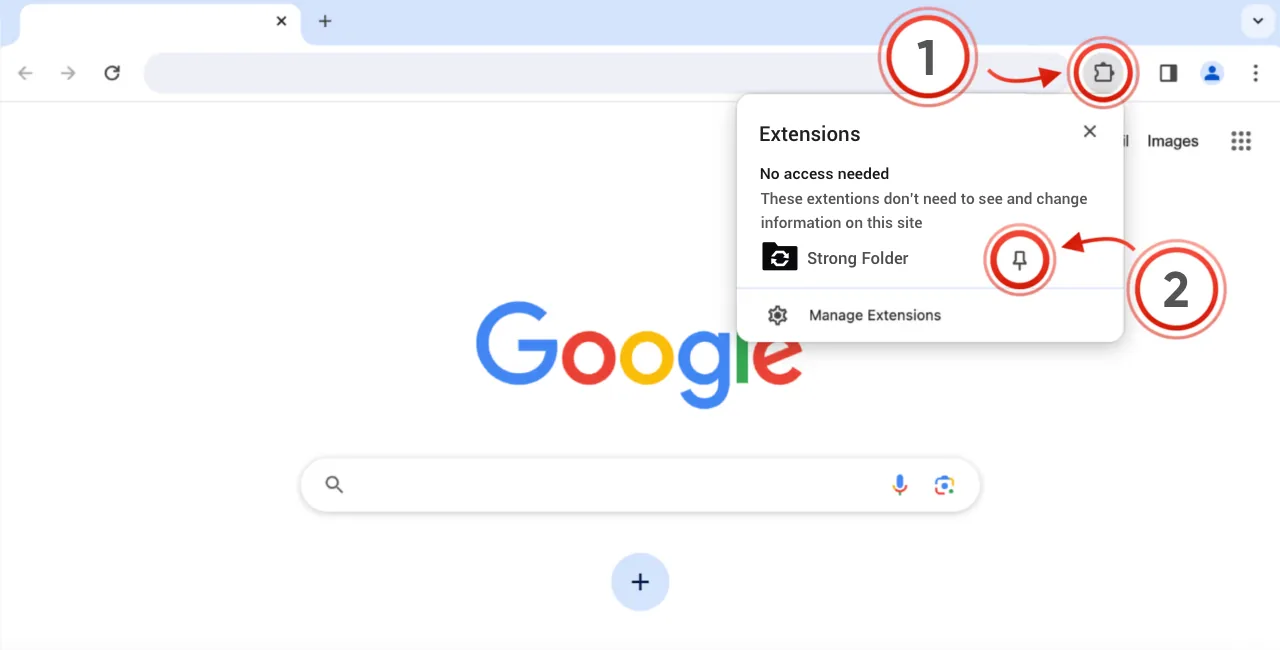
Pinning StrongFolder in Chrome

Opening StrongFolder from the Chrome toolbar

What can I send with it?

Anything you can pick from your disk: a single photo, a 50 GB video, a project folder with thousands of files. No size limit set by StrongFolder. The practical limits are free disk space on the recipient's device, connection speed, and how long both devices stay online. Popular uses:

Is it private?

The extension does not upload your files anywhere. They go straight to the recipient's browser over an encrypted WebRTC connection. See Security & privacy.

Frequently asked questions

Is the extension free?

Yes, it is free, with no account required.

Does the recipient need the extension?

No. The recipient opens the link in any browser. To save a whole folder with its structure they need Chrome, Edge or Opera on a computer.

Which browsers can install it?

Google Chrome and most Chromium-based browsers that accept Chrome Web Store extensions, such as Edge, Brave and Opera.

Does it work on a Chromebook?

Yes — ChromeOS runs Chrome extensions, so you can send files from a Chromebook the same way.

What permissions does it need?

Storage (to remember settings), clipboard write (for Copy Link) and an offscreen document for the transfer. It has no permission to read or change the web pages you visit.

In which languages is it available?

The extension interface is available in 52 languages.

Updated:

Send your next file — or folder — directly

No upload, no size limit set by us, no account. Pick a file or a whole folder, copy the link, and the recipient downloads straight from your device.

Send filesAdd to Chrome